
Introducing GridDB Cloud v2.0
GridDB Cloud v2.0 has officially been released and has a new free tier, but for now, the new GridDB Cloud v2.0 Free Plan is only offered to people living in Japan. For the rest of the world, please wait patiently; we will announce when it is ready for your consumption.
How To Sign Up
If you would like to sign up for a GridDB free trial, you can do so here: https://www.global.toshiba/ww/products-solutions/ai-iot/griddb/product/griddb-cloud.html.
First Steps with GridDB Cloud
Your GridDB Cloud instance can be communicated with via HTTP Requests; every action needed to interact with GridDB will require formulating and issuing an HTTP Request with different URLs, parameters, methods, and payload bodies.
Whitelisting Your IP Address
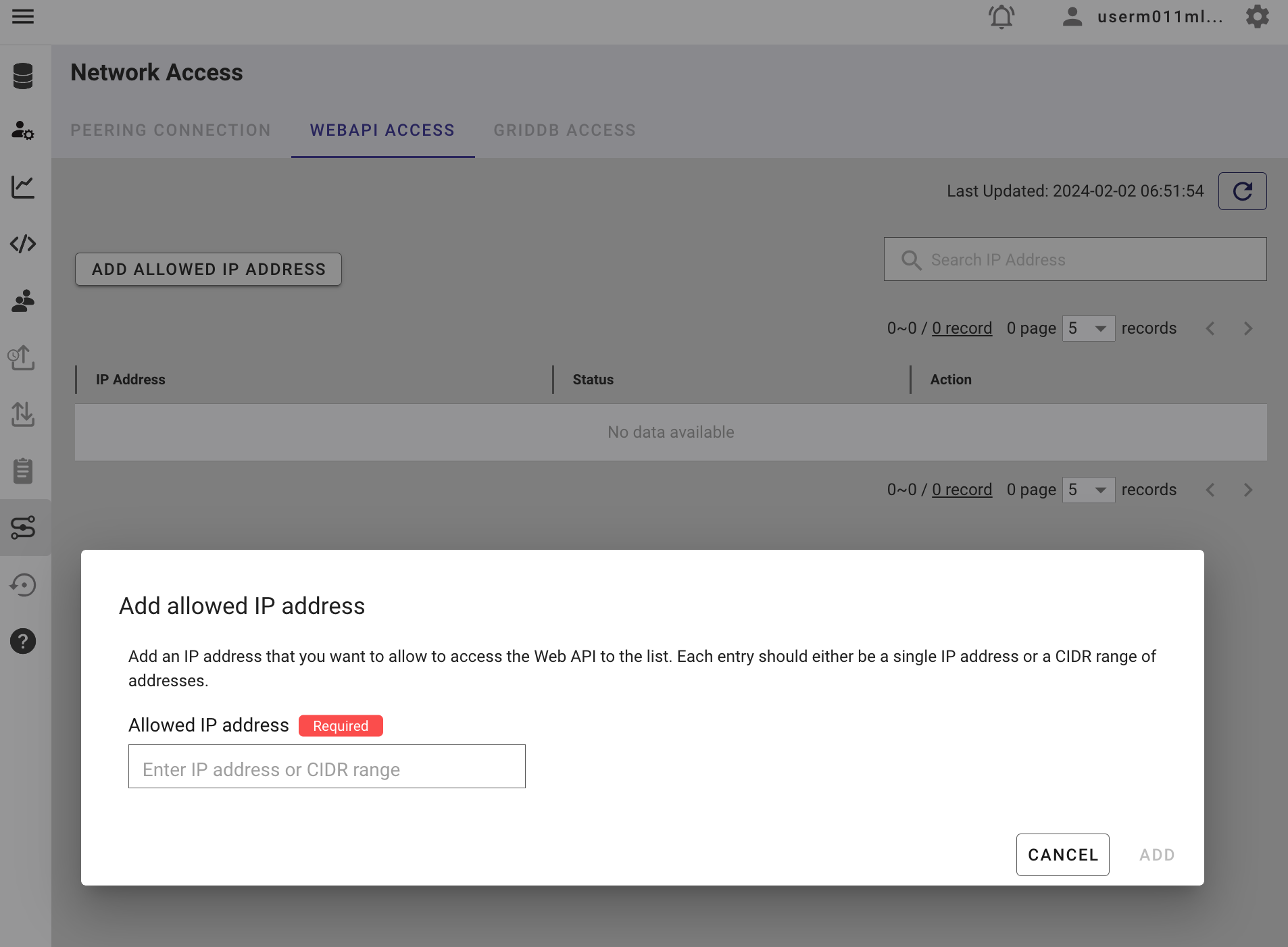
If you haven’t already, please whitelist your public IP address in the network settings of your GridDB Cloud Management dashboard.
GridDB Users with Database Access
Next, we should create a new GridDB User. From the side panel, click the icon which says GridDB User. From this page, click CREATE DATABASE USER. This user’s name and password will be attached to all of our HTTP Requests as a Basic Authorization Header. You will need to encode the username/password combination into base 64, separated by a colon; for example: admin:admin becomes YWRtaW46YWRtaW4=.
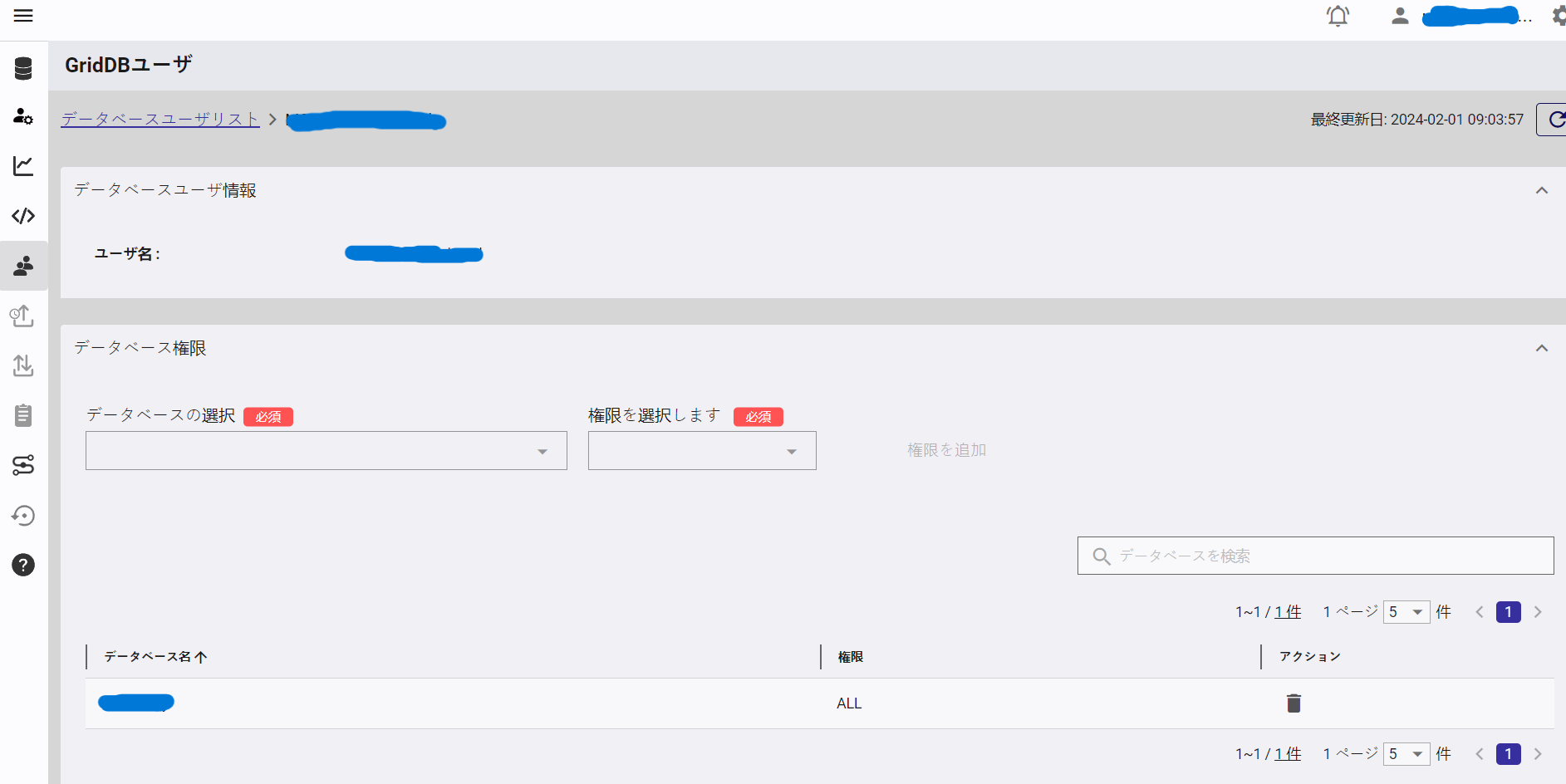
Once you create the new user, you will also need to grant access to your database. Click on the user from the table of users in GridDB Users page and from this page, grant access to your database (either READ or ALL). Now we can move on to making actual HTTP requests.
Checking your GridDB Connection
Let’s start with a sanity check and make sure that we can reach out to the GridDB instance.
Check Connection URL Endpoint
The Web API uses a base url which we will use and expand upon to build out our requests. The base url looks like this:
https://cloud<number>.griddb.com/griddb/v2/
To check that our connection exists, we can append the following to our base url /:cluster/dbs/:database/checkConnection. Because we are not sending any data back to the server, we will use the GET HTTP method.
Lastly, we need to include basic authentication in our HTTP Request’s headers. For this, we will need to include our username and password encoded into base64. With all that said, here is the final result
https://cloud5197.griddb.com/griddb/v2/gs_clustermfcloud5197/dbs/B2xcGQJy/checkConnection
We can now use this URL with any number of interfaces to communicate with our database.
cURL Request
To check our connection with cURL, you can use the following command (check_connection.sh)
curl -i –location ‘https://cloud5197.griddb.com/griddb/v2/gs_clustermfcloud5197/dbs/B2xcGQJy/checkConnection’ –header ‘Authorization: Basic TTAxMU1sd0MxYS1pc3JhZWw6aXNyYWVs’
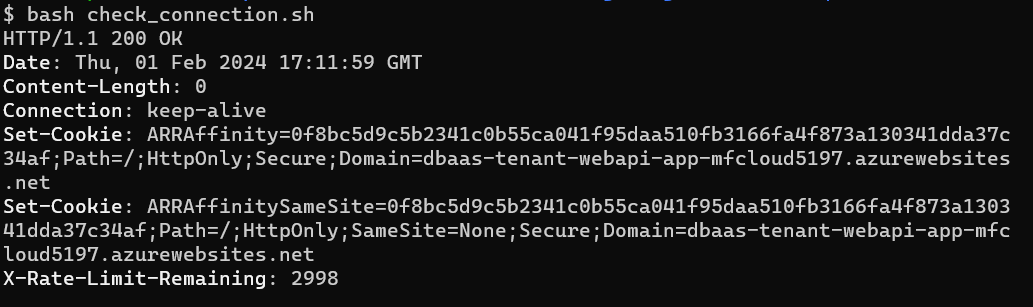
Because it’s a GET request, it’s rather simple and we only needed to add in the authorization header. You should be able to run this and get an HTTP Response of 200. If you receive 401 (unauthorized), check the credentials of your GridDB User. If you recieve 403 (forbidden), ensure that your IP address is allowed to pass through the Cloud’s firewall.
Python Request
Here is that same request written in Python
# check_connection.py
import requests

url = "https://cloud5197.griddb.com/griddb/v2/gs_clustermfcloud5197/dbs/B2xcGQJy/checkConnection"

payload = {}
headers = {
  'Authorization': 'Basic TTAxMU1sd0MxYS1pc3JhZWw6aXNyYWVs',
  'User-Agent': 'PostmanRuntime/7.29.0'
}

response = requests.request("GET", url, headers=headers, data=payload)

print(response.status_code)
node.js Request
//checkConnection.js
const request = require('request');
const options = {
  'method': 'GET',
  'url': 'https://cloud5197.griddb.com/griddb/v2/gs_clustermfcloud5197/dbs/B2xcGQJy/checkConnection',
  'headers': {
    'Authorization': 'Basic TTAxMU1sd0MxYS1pc3JhZWw6aXNyYWVs'
  }
};
request(options, function (error, response) {
  if (error) throw new Error(error);
  console.log("Response Status Code: ", response.statusCode);
});
Creating your First Containers Time Series & Collection
With our connection firmly established, we can create our first containers — both Collection and Time Series — of which are similar to relational tables. You can read more about that here: GridDB Data Model.
The URL suffix looks like this: /:cluster/dbs/:database/containers. This request can sometimes require a multitude of data and can have a big range, therefore this request will require an HTTP method of POST.
The body of the request requires container name, container type, whether a rowkey exists (bool), and the schema. Let’s first take a look at the structure outside of the context of an HTTP Request and then we will send it inside of a Request body. We will also need to include in our Request’s headers that we are sending a data payload of type JSON like so: 'Content-Type: application/json'
Time Series Container
First, let’s create a Time Series container — we can see here that we select the container type as TIME_SERIES and the first column is of type timestamp. There is also a rowkey section, but this is optional as in a time series container, the rowkey is always the timestamp by default.
{
    "container_name": "device1",
    "container_type": "TIME_SERIES",
    "rowkey": true,
    "columns": [
        {
            "name": "ts",
            "type": "TIMESTAMP"
        },
        {
            "name": "co",
            "type": "DOUBLE"
        },
        {
            "name": "humidity",
            "type": "DOUBLE"
        },
        {
            "name": "light",
            "type": "BOOL"
        },
        {
            "name": "lpg",
            "type": "DOUBLE"
        },
        {
            "name": "motion",
            "type": "BOOL"
        },
        {
            "name": "smoke",
            "type": "DOUBLE"
        },
        {
            "name": "temp",
            "type": "DOUBLE"
        }
    ]
}
Now we simply attach this to the body when we make our Request and we should create our new container. If successful, you should get a status code of 201 (Created).
cURL
#create_container.sh
curl -i -X POST --location 'https://cloud5197.griddb.com/griddb/v2/gs_clustermfcloud5197/dbs/B2xcGQJy/containers'
--header 'Content-Type: application/json'
--header 'Authorization: Basic TTAxMU1sd0MxYS1pc3JhZWw6aXNyYWVs'
--data '{
    "container_name": "device1",
    "container_type": "TIME_SERIES",
    "rowkey": true,
    "columns": [
        {
            "name": "ts",
            "type": "TIMESTAMP"
        },
        {
            "name": "co",
            "type": "DOUBLE"
        },
        {
            "name": "humidity",
            "type": "DOUBLE"
        },
        {
            "name": "light",
            "type": "BOOL"
        },
        {
            "name": "lpg",
            "type": "DOUBLE"
        },
        {
            "name": "motion",
            "type": "BOOL"
        },
        {
            "name": "smoke",
            "type": "DOUBLE"
        },
        {
            "name": "temp",
            "type": "DOUBLE"
        }
    ]
}'
Python
#create_container.py
import requests
import json

url = "https://cloud5197.griddb.com/griddb/v2/gs_clustermfcloud5197/dbs/B2xcGQJy/containers"

payload = json.dumps({
  "container_name": "device1",
  "container_type": "TIME_SERIES",
  "rowkey": True,
  "columns": [
    {
      "name": "ts",
      "type": "TIMESTAMP"
    },
    {
      "name": "co",
      "type": "DOUBLE"
    },
    {
      "name": "humidity",
      "type": "DOUBLE"
    },
    {
      "name": "light",
      "type": "BOOL"
    },
    {
      "name": "lpg",
      "type": "DOUBLE"
    },
    {
      "name": "motion",
      "type": "BOOL"
    },
    {
      "name": "smoke",
      "type": "DOUBLE"
    },
    {
      "name": "temp",
      "type": "DOUBLE"
    }
  ]
})
headers = {
  'Content-Type': 'application/json',
  'Authorization': 'Basic TTAxMU1sd0MxYS1pc3JhZWw6aXNyYWVs',
  'User-Agent': 'PostmanRuntime/7.29.0'
}

response = requests.request("POST", url, headers=headers, data=payload)

print(response.status_code)
node.js
//createContainer.js
var request = require('request');
var options = {
  'method': 'POST',
  'url': 'https://cloud5197.griddb.com/griddb/v2/gs_clustermfcloud5197/dbs/B2xcGQJy/containers',
  'headers': {
    'Content-Type': 'application/json',
    'Authorization': 'Basic TTAxMU1sd0MxYS1pc3JhZWw6aXNyYWVs'
  },
  body: JSON.stringify({
    "container_name": "device1",
    "container_type": "TIME_SERIES",
    "rowkey": true,
    "columns": [
      {
        "name": "ts",
        "type": "TIMESTAMP"
      },
      {
        "name": "co",
        "type": "DOUBLE"
      },
      {
        "name": "humidity",
        "type": "DOUBLE"
      },
      {
        "name": "light",
        "type": "BOOL"
      },
      {
        "name": "lpg",
        "type": "DOUBLE"
      },
      {
        "name": "motion",
        "type": "BOOL"
      },
      {
        "name": "smoke",
        "type": "DOUBLE"
      },
      {
        "name": "temp",
        "type": "DOUBLE"
      }
    ]
  })

};
request(options, function (error, response) {
  if (error) throw new Error(error);
  console.log("Response Status Code: ", response.statusCode);
});
Collection Container
Now let’s create a collection container. These containers don’t require a time series column (but they are allowed) and also don’t require rowkey to be set to true. Here are some examples:
cURL
#create_collection.sh
curl -i -X POST --location 'https://cloud5197.griddb.com/griddb/v2/gs_clustermfcloud5197/dbs/B2xcGQJy/containers'
--header 'Content-Type: application/json'
--header 'Authorization: Basic TTAxMU1sd0MxYS1pc3JhZWw6aXNyYWVs'
--data '{
    "container_name": "deviceMaster",
    "container_type": "COLLECTION",
    "rowkey": true,
    "columns": [
        {
            "name": "equipment",
            "type": "STRING"
        },
        {
            "name": "equipmentID",
            "type": "STRING"
        },
        {
            "name": "location",
            "type": "STRING"
        },
        {
            "name": "serialNumber",
            "type": "STRING"
        },
        {
            "name": "lastInspection",
            "type": "TIMESTAMP"
        },
        {
            "name": "information",
            "type": "STRING"
        }
    ]
}'
Python
#create_collection.py
import requests
import json

url = "https://cloud5197.griddb.com/griddb/v2/gs_clustermfcloud5197/dbs/B2xcGQJy/containers"

payload = json.dumps({
  "container_name": "deviceMaster",
  "container_type": "COLLECTION",
  "rowkey": True,
  "columns": [
    {
      "name": "equipment",
      "type": "STRING"
    },
    {
      "name": "equipmentID",
      "type": "STRING"
    },
    {
      "name": "location",
      "type": "STRING"
    },
    {
      "name": "serialNumber",
      "type": "STRING"
    },
    {
      "name": "lastInspection",
      "type": "TIMESTAMP"
    },
    {
      "name": "information",
      "type": "STRING"
    }
  ]
})
headers = {
  'Content-Type': 'application/json',
  'Authorization': 'Basic TTAxMU1sd0MxYS1pc3JhZWw6aXNyYWVs',
  'User-Agent': 'PostmanRuntime/7.29.0'
}

response = requests.request("POST", url, headers=headers, data=payload)

print(response.status_code)
node.js
//createCollection.js
var request = require('request');
var options = {
  'method': 'POST',
  'url': 'https://cloud5197.griddb.com/griddb/v2/gs_clustermfcloud5197/dbs/B2xcGQJy/containers',
  'headers': {
    'Content-Type': 'application/json',
    'Authorization': 'Basic TTAxMU1sd0MxYS1pc3JhZWw6aXNyYWVs'
  },
  body: JSON.stringify({
    "container_name": "deviceMaster",
    "container_type": "COLLECTION",
    "rowkey": true,
    "columns": [
      {
        "name": "equipment",
        "type": "STRING"
      },
      {
        "name": "equipmentID",
        "type": "STRING"
      },
      {
        "name": "location",
        "type": "STRING"
      },
      {
        "name": "serialNumber",
        "type": "STRING"
      },
      {
        "name": "lastInspection",
        "type": "TIMESTAMP"
      },
      {
        "name": "information",
        "type": "STRING"
      }
    ]
  })

};
request(options, function (error, response) {
  if (error) throw new Error(error);
  console.log(response.statusCode);
});
CRUD with GridDB Cloud (Create, Read, Update, Delete)
Next, let’s go over the commands to Create, Read, Update, and Delete.
Adding Rows of Data (Create)
We have already created some containers before, but to add to that, we will be creating rows of data to add to our container.
We can add rows of data directly inside of our containers. The URL suffix: /:cluster/dbs/public/containers/:container/rows
To PUT a row of data into our container, we will need to use the HTTP Method PUT. Similar to before, we will need to specify that our content is JSON and we will include the row data in our Request body.
You can add multiple rows at once, you just need to make sure that your payload is formed to accomdate extra rows and that you don’t have a trailing comma on the last row.
Let’s add rows to our device1 container.
[
  ["2024-01-09T10:00:01.234Z", 0.003551, 50.0, false, 0.00754352, false, 0.0232432, 21.6],
  ["2024-01-09T11:00:01.234Z", 0.303551, 60.0, false, 0.00754352, true, 0.1232432, 25.3],
  ["2024-01-09T12:00:01.234Z", 0.603411, 70.0, true, 0.00754352, true, 0.4232432, 41.5]
]
You of course also need to be sure that your row’s schema matches your container’s. If it doesn’t, you will be met with an error message and a status code of 400 (Bad Request).
cURL
https://cloud5197.griddb.com/griddb/v2/gs_clustermfcloud5197/dbs/B2xcGQJy/containers
#add_rows.sh
curl --location --request PUT 'https://cloud5197.griddb.com/griddb/v2/gs_clustermfcloud5197/dbs/B2xcGQJy/containers/device1/rows'
--header 'Content-Type: application/json'
--header 'Authorization: Basic TTAxMU1sd0MxYS1pc3JhZWw6aXNyYWVs'
--data '[
  ["2024-01-09T10:00:01.234Z", 0.003551, 50.0, false, 0.00754352, false, 0.0232432, 21.6],
  ["2024-01-09T11:00:01.234Z", 0.303551, 60.0, false, 0.00754352, true, 0.1232432, 25.3],
  ["2024-01-09T12:00:01.234Z", 0.603411, 70.0, true, 0.00754352, true, 0.4232432, 41.5]
]'
Python
#add_rows.py
import requests
import json

url = "https://cloud5197.griddb.com/griddb/v2/gs_clustermfcloud5197/dbs/B2xcGQJy/containers/device1/rows"

payload = json.dumps([
  [
    "2024-01-09T10:00:01.234Z",
    0.003551,
    50,
    False,
    0.00754352,
    False,
    0.0232432,
    21.6
  ],
  [
    "2024-01-09T11:00:01.234Z",
    0.303551,
    60,
    False,
    0.00754352,
    True,
    0.1232432,
    25.3
  ],
  [
    "2024-01-09T12:00:01.234Z",
    0.603411,
    70,
    True,
    0.00754352,
    True,
    0.4232432,
    41.5
  ]
])
headers = {
  'Content-Type': 'application/json',
  'Authorization': 'Basic TTAxMU1sd0MxYS1pc3JhZWw6aXNyYWVs',
  'User-Agent': 'PostmanRuntime/7.29.0'
}

response = requests.request("PUT", url, headers=headers, data=payload)

print(response.text)
node.js
//addRows.js
var request = require('request');
var options = {
  'method': 'PUT',
  'url': 'https://cloud5197.griddb.com/griddb/v2/gs_clustermfcloud5197/dbs/B2xcGQJy/containers/device1/rows',
  'headers': {
    'Content-Type': 'application/json',
    'Authorization': 'Basic TTAxMU1sd0MxYS1pc3JhZWw6aXNyYWVs'
  },
  body: JSON.stringify([
    [
      "2024-01-09T10:00:01.234Z",
      0.003551,
      50,
      false,
      0.00754352,
      false,
      0.0232432,
      21.6
    ],
    [
      "2024-01-09T11:00:01.234Z",
      0.303551,
      60,
      false,
      0.00754352,
      true,
      0.1232432,
      25.3
    ],
    [
      "2024-01-09T12:00:01.234Z",
      0.603411,
      70,
      true,
      0.00754352,
      true,
      0.4232432,
      41.5
    ]
  ])

};
request(options, function (error, response) {
  if (error) throw new Error(error);
  console.log(response.body);
});
Querying Container (Read)
After writing to our containers, we will want to read from our containers. The URL suffix is exactly the same as before: /:cluster/dbs/:database/containers/:container/rows except now we will be using the POST method request. The data expected by the server in these requests are how we expect our row data returned to us — for example, we can choose a row limit, an offset, any conditions, and a sort method. Here is what that body looks like:
{
  "offset" : 0,
  "limit"  : 100,
  "condition" : "temp >= 30",
  "sort" : "temp desc"
}
The one caveat with making this Request is that because it is a POST request, you will need to send something in the body of the request. Any of the parameters above will do, but including the limit is likely the easiest option to include and has the added benefit of reducing server strain.
If successful, you should get a server response with a status code of 200 (OK) and a body with the data requested.
#query_container.sh
{
    "columns": [
        {
            "name": "ts",
            "type": "TIMESTAMP",
            "timePrecision": "MILLISECOND"
        },
        {
            "name": "co",
            "type": "DOUBLE"
        },
        {
            "name": "humidity",
            "type": "DOUBLE"
        },
        {
            "name": "light",
            "type": "BOOL"
        },
        {
            "name": "lpg",
            "type": "DOUBLE"
        },
        {
            "name": "motion",
            "type": "BOOL"
        },
        {
            "name": "smoke",
            "type": "DOUBLE"
        },
        {
            "name": "temp",
            "type": "DOUBLE"
        }
    ],
    "rows": [
        [
            "2024-01-09T12:00:01.234Z",
            0.603411,
            70.0,
            true,
            0.00754352,
            true,
            0.4232432,
            41.5
        ]
    ],
    "offset": 0,
    "limit": 100,
    "total": 1
}
cURL
curl -i -X POST --location 'https://cloud5197.griddb.com/griddb/v2/gs_clustermfcloud5197/dbs/B2xcGQJy/containers/device1/rows'
--header 'Content-Type: application/json'
--header 'Authorization: Basic TTAxMU1sd0MxYS1pc3JhZWw6aXNyYWVs'
--data '{
  "offset" : 0,
  "limit"  : 100,
  "condition" : "temp >= 30",
  "sort" : "temp desc"
}'
Python
#query_container.py
import requests
import json

url = "https://cloud5197.griddb.com/griddb/v2/gs_clustermfcloud5197/dbs/B2xcGQJy/containers/device1/rows"

payload = json.dumps({
  "offset": 0,
  "limit": 100,
  "condition": "temp >= 30",
  "sort": "temp desc"
})
headers = {
  'Content-Type': 'application/json',
  'Authorization': 'Basic TTAxMU1sd0MxYS1pc3JhZWw6aXNyYWVs',
  'User-Agent': 'PostmanRuntime/7.29.0'
}

response = requests.request("POST", url, headers=headers, data=payload)

print(response.text)
nodejs
//queryContainer.js
var request = require('request');
var options = {
  'method': 'POST',
  'url': 'https://cloud5197.griddb.com/griddb/v2/gs_clustermfcloud5197/dbs/B2xcGQJy/containers/device1/rows',
  'headers': {
    'Content-Type': 'application/json',
    'Authorization': 'Basic TTAxMU1sd0MxYS1pc3JhZWw6aXNyYWVs'
  },
  body: JSON.stringify({
    "offset": 0,
    "limit": 100,
    "condition": "temp >= 30",
    "sort": "temp desc"
  })

};
request(options, function (error, response) {
  if (error) throw new Error(error);
  console.log(response.body);
});
Updating a Row (Update)
To cover updates, adding rows of data can be considered updating, but we can also directly update a row (if the container has rowkeys). The way it works is if you push a row of data to your container which has rowkey set as true, and send up a row of data with a rowkey that already exists in your container, it will update the row with whatever new information is pushed along.
Let’s push data to our deviceMaster collection container once to add data, and then again to update the row.
Let’s craft our row of data
[
  ["device1", "01", "CA", "23412", "2023-12-15T10:45:00.032Z", "working"]
]
Now let’s form our HTTP Requests
cURL
#update_collection.sh
curl -i --location --request PUT 'https://cloud5197.griddb.com/griddb/v2/gs_clustermfcloud5197/dbs/B2xcGQJy/containers/deviceMaster/rows'
--header 'Content-Type: application/json'
--header 'Authorization: Basic TTAxMU1sd0MxYS1pc3JhZWw6aXNyYWVs'
--data '[
  ["device1", "01", "CA", "23412", "2023-12-15T10:45:00.032Z", "working"]
]'
Python
#update_collection.py
import requests
import json

url = "https://cloud5197.griddb.com/griddb/v2/gs_clustermfcloud5197/dbs/B2xcGQJy/containers/deviceMaster/rows"

payload = json.dumps([
  [
    "device1",
    "01",
    "CA",
    "23412",
    "2023-12-15T10:45:00.032Z",
    "working"
  ]
])
headers = {
  'Content-Type': 'application/json',
  'Authorization': 'Basic TTAxMU1sd0MxYS1pc3JhZWw6aXNyYWVs',
  'User-Agent': 'PostmanRuntime/7.29.0'
}

response = requests.request("PUT", url, headers=headers, data=payload)

print(response.text)
node.js
//updateCollection.js
var request = require('request');
var options = {
  'method': 'PUT',
  'url': 'https://cloud5197.griddb.com/griddb/v2/gs_clustermfcloud5197/dbs/B2xcGQJy/containers/deviceMaster/rows',
  'headers': {
    'Content-Type': 'application/json',
    'Authorization': 'Basic TTAxMU1sd0MxYS1pc3JhZWw6aXNyYWVs'
  },
  body: JSON.stringify([
    [
      "device1",
      "01",
      "CA",
      "23412",
      "2023-12-15T10:45:00.032Z",
      "working"
    ]
  ])

};
request(options, function (error, response) {
  if (error) throw new Error(error);
  console.log(response.body);
});
Updating a Row
And now with that data in there, if you change any of the values outside of the first one (the rowkey, the device name), it will update that device’s metadata will keeping the row inside of your container.
curl -i --location --request PUT 'https://cloud5197.griddb.com/griddb/v2/gs_clustermfcloud5197/dbs/B2xcGQJy/containers/deviceMaster/rows'
--header 'Content-Type: application/json'
--header 'Authorization: Basic TTAxMU1sd0MxYS1pc3JhZWw6aXNyYWVs'
--data '[
  ["device1", "01", "NY", "23412", "2023-12-20T10:45:00.032Z", "working"]
]'
Here we are changing the location and the time of last inspection. If you look at your dashboard, the values will be have been updated.
Deleting a Row (Delete)
We can delete a row simply by using the appropriate HTTP Method (Delete) and then sending in a valid rowkey and container to our server. Let’s delete our deviceMaster’s lone row.
The body of the request looks like this. You can add multiple rowkeys inside here to delete multiple rows at once.
[
  "device1"
]
cURL
#delete_row.sh
curl -v --location --request DELETE 'https://cloud5197.griddb.com/griddb/v2/gs_clustermfcloud5197/dbs/B2xcGQJy/containers/deviceMaster/rows'
--header 'Content-Type: application/json'
--header 'Authorization: Basic TTAxMU1sd0MxYS1pc3JhZWw6aXNyYWVs'
--data '[
  "device1"
]'
Python
#delete_row.py
import requests
import json

url = "https://cloud5197.griddb.com/griddb/v2/gs_clustermfcloud5197/dbs/B2xcGQJy/containers/deviceMaster/rows"

payload = json.dumps([
  "device1"
])
headers = {
  'Content-Type': 'application/json',
  'Authorization': 'Basic TTAxMU1sd0MxYS1pc3JhZWw6aXNyYWVs',
  'User-Agent': 'PostmanRuntime/7.29.0'
}

response = requests.request("DELETE", url, headers=headers, data=payload)

print(response.status_code)
node.js
//deleteRow.js
var request = require('request');
var options = {
  'method': 'DELETE',
  'url': 'https://cloud5197.griddb.com/griddb/v2/gs_clustermfcloud5197/dbs/B2xcGQJy/containers/deviceMaster/rows',
  'headers': {
    'Content-Type': 'application/json',
    'Authorization': 'Basic TTAxMU1sd0MxYS1pc3JhZWw6aXNyYWVs'
  },
  body: JSON.stringify([
    "device1"
  ])

};
request(options, function (error, response) {
  if (error) throw new Error(error);
  console.log(response.statusCode);
});
Deleting a Row from Time Series Container
You can also delete the row of a time series container. As stated before, the time stamp will always be the rowkey in a time series container, so here we just add our time stamp and those rows will be deleted.
#delete_container.sh
curl --location --request DELETE 'https://cloud5197.griddb.com/griddb/v2/gs_clustermfcloud5197/dbs/B2xcGQJy/containers/device1/rows'
--header 'Content-Type: application/json'
--header 'Authorization: Basic TTAxMU1sd0MxYS1pc3JhZWw6aXNyYWVs'
--data '[
  "2024-01-09T10:00:01.234Z",
  "2024-01-09T12:00:01.234Z"
]'
TQL
Next, let’s try running a TQL Query. If you’re unfamiliar, TQL is GridDB’s special query language.
Let’s run a simple query. First, this is what the URL looks like
base url + /:cluster/dbs/:database/tql
The body of the request will need the container name followed by your query statement. We can also query multiple containers at once:
[
  {"name" : "deviceMaster", "stmt" : "select * limit 100", "columns" : null},
  {"name" : "device1", "stmt" : "select * where temp>=24", "columns" : ["temp", "co"]},
]
And this is the response of the above query:
[
    {
        "columns": [
            {
                "name": "equipment",
                "type": "STRING"
            },
            {
                "name": "equipmentID",
                "type": "STRING"
            },
            {
                "name": "location",
                "type": "STRING"
            },
            {
                "name": "serialNumber",
                "type": "STRING"
            },
            {
                "name": "lastInspection",
                "type": "TIMESTAMP",
                "timePrecision": "MILLISECOND"
            },
            {
                "name": "information",
                "type": "STRING"
            }
        ],
        "results": [
            [
                "device1",
                "01",
                "NY",
                "23412",
                "2023-12-20T10:45:00.032Z",
                "working"
            ]
        ],
        "offset": 0,
        "limit": 100,
        "total": 1,
        "responseSizeByte": 31
    },
    {
        "columns": [
            {
                "name": "temp",
                "type": "DOUBLE"
            },
            {
                "name": "co",
                "type": "DOUBLE"
            }
        ],
        "results": [
            [
                25.3,
                0.303551
            ],
            [
                41.5,
                0.603411
            ]
        ],
        "offset": 0,
        "limit": 1000000,
        "total": 2,
        "responseSizeByte": 32
    }
]
cURL
#tql.sh
curl -i -X POST --location 'https://cloud5197.griddb.com/griddb/v2/gs_clustermfcloud5197/dbs/B2xcGQJy/tql'
--header 'Content-Type: application/json'
--header 'Authorization: Basic TTAxMU1sd0MxYS1pc3JhZWw6aXNyYWVs'
--data '
[
  {"name" : "deviceMaster", "stmt" : "select * limit 100", "columns" : null},
  {"name" : "device1", "stmt" : "select * where temp>=24", "columns" : ["temp", "co"]}
]
'
Python
#tql.py
import requests
import json

url = "https://cloud5197.griddb.com/griddb/v2/gs_clustermfcloud5197/dbs/B2xcGQJy/tql"

payload = json.dumps([
  {
    "name": "deviceMaster",
    "stmt": "select * limit 100",
    "columns": None
  },
  {
    "name": "device1",
    "stmt": "select * where temp>=24",
    "columns": [
      "temp",
      "co"
    ]
  }
])
headers = {
  'Content-Type': 'application/json',
  'Authorization': 'Basic TTAxMU1sd0MxYS1pc3JhZWw6aXNyYWVs',
  'User-Agent': 'PostmanRuntime/7.29.0'
}

response = requests.request("POST", url, headers=headers, data=payload)

print(response.text)
node.js
//tql.js
var request = require('request');
var options = {
  'method': 'POST',
  'url': 'https://cloud5197.griddb.com/griddb/v2/gs_clustermfcloud5197/dbs/B2xcGQJy/tql',
  'headers': {
    'Content-Type': 'application/json',
    'Authorization': 'Basic TTAxMU1sd0MxYS1pc3JhZWw6aXNyYWVs'
  },
  body: JSON.stringify([
    {
      "name": "deviceMaster",
      "stmt": "select * limit 100",
      "columns": null
    },
    {
      "name": "device1",
      "stmt": "select * where temp>=24",
      "columns": [
        "temp",
        "co"
      ]
    }
  ])

};
request(options, function (error, response) {
  if (error) throw new Error(error);
  console.log(response.body);
});
SQL
On top of TQL, GridDB and the GridDB Cloud also have SQL functionality. Though the SQL functionality for the GridDB Cloud is limited to reading results (SELECT) and updating some rows (UPDATE).
SQL SELECT
base url + /:cluster/dbs/:database/sql
[
  {"type" : "sql-select", "stmt" : "SELECT * FROM deviceMaster"},
  {"type" : "sql-select", "stmt" : "SELECT temp, co FROM device1 WHERE temp>=24"}
]
It is very similar to TQL but we call on the container name from within the query itself, just like “normal” SQL statements.
Here is the response body:
[
    {
        "columns": [
            {
                "name": "equipment",
                "type": "STRING"
            },
            {
                "name": "equipmentID",
                "type": "STRING"
            },
            {
                "name": "location",
                "type": "STRING"
            },
            {
                "name": "serialNumber",
                "type": "STRING"
            },
            {
                "name": "lastInspection",
                "type": "TIMESTAMP",
                "timePrecision": "MILLISECOND"
            },
            {
                "name": "information",
                "type": "STRING"
            }
        ],
        "results": [
            [
                "device1",
                "01",
                "CA",
                "23412",
                "2023-12-15T10:45:00.032Z",
                "working"
            ]
        ],
        "responseSizeByte": 47
    },
    {
        "columns": [
            {
                "name": "temp",
                "type": "DOUBLE"
            },
            {
                "name": "co",
                "type": "DOUBLE"
            }
        ],
        "results": [
            [
                25.3,
                0.303551
            ],
            [
                41.5,
                0.603411
            ]
        ],
        "responseSizeByte": 32
    }
]
cURL
#sql_select.sh
curl -i -X POST --location 'https://cloud5197.griddb.com/griddb/v2/gs_clustermfcloud5197/dbs/B2xcGQJy/sql'
--header 'Content-Type: application/json'
--header 'Authorization: Basic TTAxMU1sd0MxYS1pc3JhZWw6aXNyYWVs'
--data '[
  {"type" : "sql-select", "stmt" : "SELECT * FROM deviceMaster"},
  {"type" : "sql-select", "stmt" : "SELECT temp, co FROM device1 WHERE temp>=24"}
]
'
Python
#sql_select.py
import requests
import json

url = "https://cloud5197.griddb.com/griddb/v2/gs_clustermfcloud5197/dbs/B2xcGQJy/sql"

payload = json.dumps([
  {
    "type": "sql-select",
    "stmt": "SELECT * FROM deviceMaster"
  },
  {
    "type": "sql-select",
    "stmt": "SELECT temp, co FROM device1 WHERE temp>=24"
  }
])
headers = {
  'Content-Type': 'application/json',
  'Authorization': 'Basic TTAxMU1sd0MxYS1pc3JhZWw6aXNyYWVs',
  'User-Agent': 'PostmanRuntime/7.29.0'
}

response = requests.request("POST", url, headers=headers, data=payload)

print(response.text)
node.js
//sqlSelect.js
var request = require('request');
var options = {
  'method': 'POST',
  'url': 'https://cloud5197.griddb.com/griddb/v2/gs_clustermfcloud5197/dbs/B2xcGQJy/sql',
  'headers': {
    'Content-Type': 'application/json',
    'Authorization': 'Basic TTAxMU1sd0MxYS1pc3JhZWw6aXNyYWVs'
  },
  body: JSON.stringify([
    {
      "type": "sql-select",
      "stmt": "SELECT * FROM deviceMaster"
    },
    {
      "type": "sql-select",
      "stmt": "SELECT temp, co FROM device1 WHERE temp>=24"
    }
  ])

};
request(options, function (error, response) {
  if (error) throw new Error(error);
  console.log(response.body);
});
SQL SELECT GROUP BY RANGE
Because we are using SQL Select, you can use the GridDB’s Group By Range as well. You can learn more about that here: Exploring GridDBâs Group By Range Functionality.
We will make our query and group by hours:
[
  {"type" : "sql-select", "stmt" : "SELECT temp, co FROM device1 WHERE ts > TO_TIMESTAMP_MS(1594515625984) AND ts < TO_TIMESTAMP_MS(1595040779336) GROUP BY RANGE (ts) EVERY (1, HOUR)"}
]
cURL
#sql_select_groupby.sh
curl -i --location 'https://cloud5197.griddb.com/griddb/v2/gs_clustermfcloud5197/dbs/B2xcGQJy/sql'
--header 'Content-Type: application/json'
--header 'Authorization: Basic TTAxMU1sd0MxYS1pc3JhZWw6aXNyYWVs'
--data '[
  {"type" : "sql-select", "stmt" : "SELECT temp, co FROM device1 WHERE ts > TO_TIMESTAMP_MS(1594515625984) AND ts < TO_TIMESTAMP_MS(1595040779336) GROUP BY RANGE (ts) EVERY (1, HOUR)"}
]
'
Python
# sql_select_groupby.py
import requests
import json

url = "https://cloud5197.griddb.com/griddb/v2/gs_clustermfcloud5197/dbs/B2xcGQJy/sql"

payload = json.dumps([
  {
    "type": "sql-select",
    "stmt": "SELECT temp, co FROM device1 WHERE ts > TO_TIMESTAMP_MS(1594515625984) AND ts < TO_TIMESTAMP_MS(1595040779336) GROUP BY RANGE (ts) EVERY (1, HOUR)"
  }
])
headers = {
  'Content-Type': 'application/json',
  'Authorization': 'Basic TTAxMU1sd0MxYS1pc3JhZWw6aXNyYWVs',
  'User-Agent': 'PostmanRuntime/7.29.0'
}

response = requests.request("POST", url, headers=headers, data=payload)

print(response.text)
SQL Insert
The base URL is the same as SELECT, but you need to append ‘update’
base url + /:cluster/dbs/:database/sql/update
[
  {"stmt" : "insert into deviceMaster(equipment, equipmentID, location, serialNumber, lastInspection, information) values('device2', '02', 'MA', '34412', TIMESTAMP('2023-12-21T10:45:00.032Z'), 'working')"}
]
cURL
#sql_insert.sh
curl -i -X POST --location 'https://cloud5197.griddb.com/griddb/v2/gs_clustermfcloud5197/dbs/B2xcGQJy/sql/update'
--header 'Content-Type: application/json'
--header 'Authorization: Basic TTAxMU1sd0MxYS1pc3JhZWw6aXNyYWVs'
--data '[
  {"stmt" : "insert into deviceMaster(equipment, equipmentID, location, serialNumber, lastInspection, information) values('''device2''', '''02''', '''MA''', '''34412''', TIMESTAMP('''2023-12-21T10:45:00.032Z'''), '''working''')"}
]'
Python
#sql_insert.py
import requests
import json

url = "https://cloud5197.griddb.com/griddb/v2/gs_clustermfcloud5197/dbs/B2xcGQJy/sql/update"

payload = json.dumps([
  {
    "stmt": "insert into deviceMaster(equipment, equipmentID, location, serialNumber, lastInspection, information) values('device2', '02', 'MA', '34412', TIMESTAMP('2023-12-21T10:45:00.032Z'), 'working')"
  }
])
headers = {
  'Content-Type': 'application/json',
  'Authorization': 'Basic TTAxMU1sd0MxYS1pc3JhZWw6aXNyYWVs',
  'User-Agent': 'PostmanRuntime/7.29.0'
}

response = requests.request("POST", url, headers=headers, data=payload)

print(response.text)
node.js
//sqlInsert.js
var request = require('request');
var options = {
  'method': 'POST',
  'url': 'https://cloud5197.griddb.com/griddb/v2/gs_clustermfcloud5197/dbs/B2xcGQJy/sql/update',
  'headers': {
    'Content-Type': 'application/json',
    'Authorization': 'Basic TTAxMU1sd0MxYS1pc3JhZWw6aXNyYWVs'
  },
  body: JSON.stringify([
    {
      "stmt": "insert into deviceMaster(equipment, equipmentID, location, serialNumber, lastInspection, information) values('device2', '02', 'MA', '34412', TIMESTAMP('2023-12-21T10:45:00.032Z'), 'working')"
    }
  ])

};
request(options, function (error, response) {
  if (error) throw new Error(error);
  console.log(response.body);
});
SQL Update
The base URL is the same as above, but you need to append ‘update’
base url + /:cluster/dbs/:database/sql/update
[
  {"stmt" : "update deviceMaster set location = 'LA' where equipmentID = '01'"}
]
This command allows you to Update, similar to the NoSQL method described above. We can both update existing rows, or update containers to add new rows.
cURL
#sql_update.sh
curl -i -X POST --location 'https://cloud5197.griddb.com/griddb/v2/gs_clustermfcloud5197/dbs/B2xcGQJy/sql/update'
--header 'Content-Type: application/json'
--header 'Authorization: Basic TTAxMU1sd0MxYS1pc3JhZWw6aXNyYWVs'
--data '[
  {"stmt" : "update deviceMaster set location = '''LA''' where equipmentID = '''01'''"}
]'
Python
#sql_update.py
import requests
import json

url = "https://cloud5197.griddb.com/griddb/v2/gs_clustermfcloud5197/dbs/B2xcGQJy/sql/update"

payload = json.dumps([
  {
    "stmt": "update deviceMaster set location = 'LA' where equipmentID = '01'"
  }
])
headers = {
  'Content-Type': 'application/json',
  'Authorization': 'Basic TTAxMU1sd0MxYS1pc3JhZWw6aXNyYWVs',
  'User-Agent': 'PostmanRuntime/7.29.0'
}

response = requests.request("POST", url, headers=headers, data=payload)

print(response.text)
node.js
//sqlUpdate.js
var request = require('request');
var options = {
  'method': 'POST',
  'url': 'https://cloud5197.griddb.com/griddb/v2/gs_clustermfcloud5197/dbs/B2xcGQJy/sql/update',
  'headers': {
    'Content-Type': 'application/json',
    'Authorization': 'Basic TTAxMU1sd0MxYS1pc3JhZWw6aXNyYWVs'
  },
  body: JSON.stringify([
    {
      "stmt": "update deviceMaster set location = 'LA' where equipmentID = '01'"
    }
  ])

};
request(options, function (error, response) {
  if (error) throw new Error(error);
  console.log(response.body);
});
Dropping Containers
We can also drop containers.
base url + /:cluster/dbs/:database/containers
The request’s body can contain one or multiple container names of which will be dropped once we make our request.
[
  "deviceMaster"
]
If successful, you will receive a status code of 204 (No Content)
cURL
#delete_container.sh
curl -i --location --request DELETE 'https://cloud5197.griddb.com/griddb/v2/gs_clustermfcloud5197/dbs/B2xcGQJy/containers'
--header 'Content-Type: application/json'
--header 'Authorization: Basic TTAxMU1sd0MxYS1pc3JhZWw6aXNyYWVs'
--data '[
  "deviceMaster"
]'
Python
#delete_container.py
import requests
import json

url = "https://cloud5197.griddb.com/griddb/v2/gs_clustermfcloud5197/dbs/B2xcGQJy/containers"

payload = json.dumps([
  "deviceMaster"
])
headers = {
  'Content-Type': 'application/json',
  'Authorization': 'Basic TTAxMU1sd0MxYS1pc3JhZWw6aXNyYWVs',
  'User-Agent': 'PostmanRuntime/7.29.0'
}

response = requests.request("DELETE", url, headers=headers, data=payload)

print(response.status_code)
node.js
//deleteContainer.js
var request = require('request');
var options = {
  'method': 'DELETE',
  'url': 'https://cloud5197.griddb.com/griddb/v2/gs_clustermfcloud5197/dbs/B2xcGQJy/containers',
  'headers': {
    'Content-Type': 'application/json',
    'Authorization': 'Basic TTAxMU1sd0MxYS1pc3JhZWw6aXNyYWVs'
  },
  body: JSON.stringify([
    "deviceMaster"
  ])

};
request(options, function (error, response) {
  if (error) throw new Error(error);
  console.log(response.statusCode);
});
Ingesting CSV Data
Next, let’s take a look at ingesting CSV data. We will ingest IoT data from Kaggle. You can download the raw file from their website here: https://www.kaggle.com/datasets/garystafford/environmental-sensor-data-132k.
Here is the python script you can use to ingest the data into our device1 container.
We have already created our device1 container so there is no need for our new python script to do so, but here it is just for completeness-sake
#data_ingest.py
import pandas as pd
import numpy as np
import json
import requests
from datetime import datetime as dt, timezone

headers = {
  'Content-Type': 'application/json',
  'Authorization': 'Basic TTAxMU1sd0MxYS1pc3JhZWw6aXNyYWVs',
  "User-Agent":"PostmanRuntime/7.29.0"
}

base_url = 'https://cloud5197.griddb.com/griddb/v2/gs_clustermfcloud5197/dbs/B2xcGQJy/'

data_obj = {
    "container_name": "device1",
    "container_type": "TIME_SERIES",
    "rowkey": True,
    "columns": []
}
input_variables = [
    "ts","co","humidity","light","lpg","motion","smoke","temp"
]
data_types = [
    "TIMESTAMP", "DOUBLE", "DOUBLE", "BOOL", "DOUBLE", "BOOL", "DOUBLE","DOUBLE"
]

for variable, data_type in zip(input_variables, data_types):
    column = {
        "name": variable,
        "type": data_type
    }
    data_obj["columns"].append(column)

# Create Container
url = base_url + 'containers'
r = requests.post(url, json = data_obj, headers = headers)
All of this is pretty straightforward.
Next, let’s actually ingest the data. To do so, we will use the pandas python library to read the csv file which we will include inside of our body’s request to be ingested. The pandas library also allows us to easily target and transform specific columns in our csv data to make it possible to be ingested.
And one last note, because the csv file is over eight megabytes, we will break up our data into chunks and send them to our Cloud that way. Here is the rest of the code:
iot_data = pd.read_csv('iot_telemetry_data.csv')

#2023-12-15T10:25:00.253Z
iot_data['ts'] = pd.to_datetime(iot_data['ts'], unit='s').dt.strftime("%Y-%m-%dT%I:%M:%S.%fZ")
print(iot_data["ts"])
iot_data = iot_data.drop('device', axis=1)
#print(iot_data.dtypes)

iot_subsets = np.array_split(iot_data, 20)

# Ingest Data
url = base_url + 'containers/device1/rows'

for subset in  iot_subsets:
    #Convert the data in the dataframe to the JSON format
    iot_subsets_json = subset.to_json(orient='values')

    request_body_subset = iot_subsets_json
    r = requests.put(url, data=request_body_subset, headers=headers)
    print('~~~~~~~~~~~~~~~~~~~~~~~~~~~~~')
    print('_______________',r.text,'___________')
    print('~~~~~~~~~~~~~~~~~~~~~~~~~~~~~')
    if r.status_code > 299:
        print(r.status_code)
        break
    else:
        print('Success for chunk')
As you run the script, it should be printing our successful messages for each chunk uploaded, complete with how many rows got successfully updated. Once done, you can check out your device1 with an HTTP Request query or through the portal.
Data Analysis
Lastly, let’s do some simple python analysis. We will query our iot data and then use that data to do some simple analysis and charting of our data.
#data_analysis.py
import pandas as pd
import numpy as np
import requests
import plotly.express as px
from IPython.display import Image

# ts           object
# co          float64
# humidity    float64
# light          bool
# lpg         float64
# motion         bool
# smoke       float64
# temp        float64


headers = {
  'Content-Type': 'application/json',
  'Authorization': 'Basic TTAxMU1sd0MxYS1pc3JhZWw6aXNyYWVs',
  "User-Agent":"PostmanRuntime/7.29.0"
}
base_url = 'https://cloud5197.griddb.com/griddb/v2/gs_clustermfcloud5197/dbs/B2xcGQJy/'

sql_query1 = (f"""SELECT * from device1 WHERE co < 0.0019050147565559603 """)

url = base_url + 'sql'
request_body = '[{"type":"sql-select", "stmt":"'+sql_query1+'"}]'


data_req1 = requests.post(url, data=request_body, headers=headers)
myJson = data_req1.json()

dataset = pd.DataFrame(myJson[0]["results"],columns=[myJson[0]["columns"][0]["name"],myJson[0]["columns"][1]["name"],myJson[0]["columns"][2]["name"],
myJson[0]["columns"][3]["name"],myJson[0]["columns"][4]["name"],myJson[0]["columns"][5]["name"],myJson[0]["columns"][6]["name"],myJson[0]["columns"][7]["name"]])

print(dataset)

lowest_col = dataset.sort_values('co', ascending=False).head(20000)

scatter_plot = px.scatter(lowest_col, x='ts', y='co', size='co', color='co',
                          color_continuous_scale='plasma', hover_name='co')
# Customize the plot
scatter_plot.update_layout(
    title='Data Analysis',
    xaxis_title='CO2 Emissions',
    yaxis_title='Time'
)

scatter_plot.update_layout(template='plotly_dark')


# Show the plot
scatter_plot.show()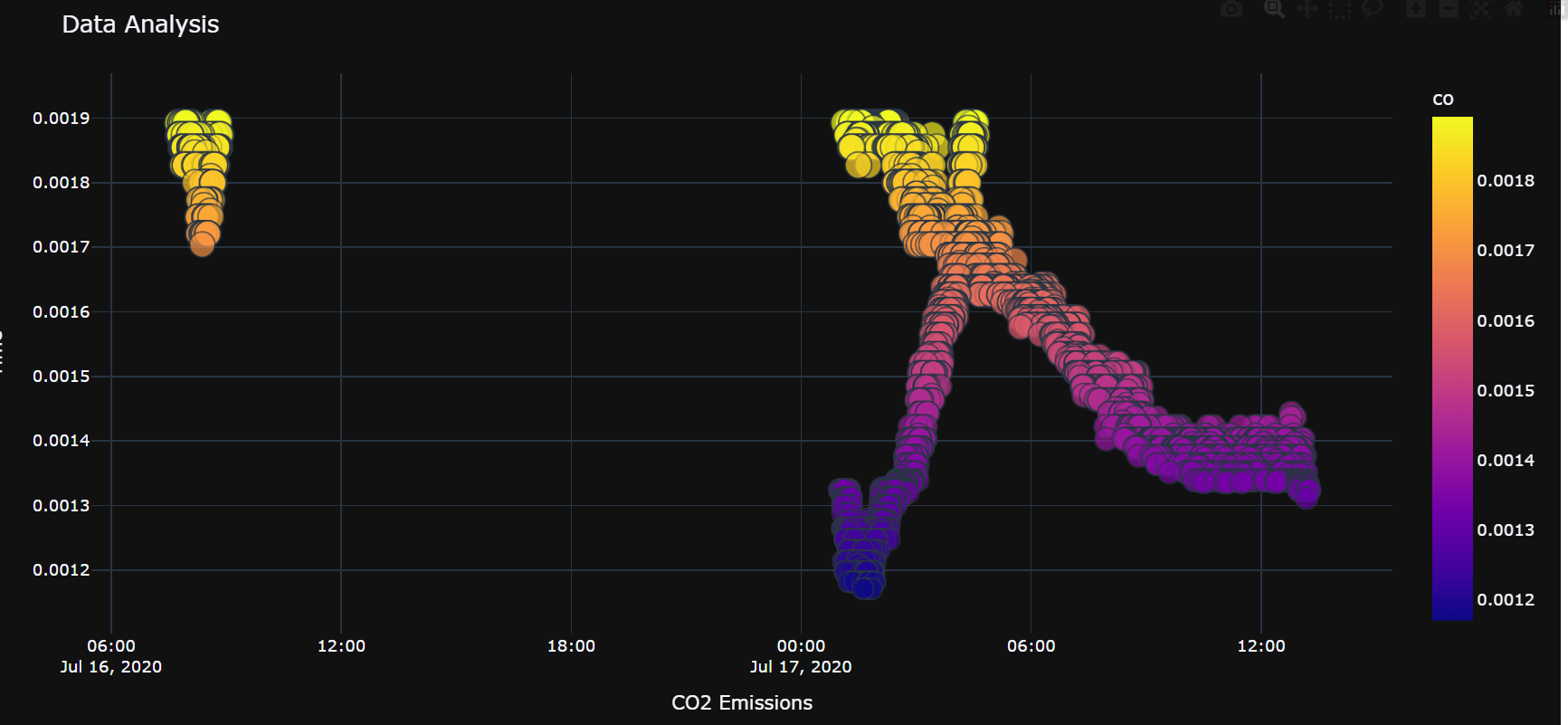
If you have any questions about the blog, please create a Stack Overflow post here https://stackoverflow.com/questions/ask?tags=griddb .
Make sure that you use the “griddb” tag so our engineers can quickly reply to your questions.